15 Virtual Classroom Tools Teachers Love (Free & Paid)
Many schools use different virtual platforms for classroom activities, which scatters information, adds unnecessary costs, and creates more work for teachers and IT support.
Virtual classroom tools help teachers manage online assessments, classes, interactive lesson visuals, and communication the same way they would in a physical classroom. They support school-wide security, seamless integration, and affordability while meeting the needs of different grades.
In September 2025 a survey found that 90% of teachers use online learning platforms such as Google Classroom, Canvas, and Blackboard. This means teachers use digital AI tools in their remote classes.
In this article, I’ll compare the 15 best virtual classroom tools across five essential layers every teacher faces. Live teaching, learning management, student safety, parent communication, and assessment and accessibility. You’ll learn which platform to choose based on your budget, size, needs, technical capabilities, features, pricing models, and limitations before you buy.
EngageLi, LearnCube, and Microsoft Teams for Education are all-in-one platforms that give students a practical option to build a more connected, reliable online learning environment.
What is a Virtual Classroom Tool for the Teacher?
Virtual classroom resources for teachers are online platforms that let schools deliver live instruction, organize learning, boost engagement, communicate with families, and conduct online testing. These can include video conferencing programs, learning management systems (LMS), and student safety solutions.
You can also explore the best AI tools for detecting dishonest responses during video interviews. They help when you run virtual tests and want to prevent students from cheating on oral questions.
There are five layers to a complete Virtual Classroom setup.
- Live teaching: Video meetings, screen sharing, breakout rooms, and interactive whiteboards.
- Learning management: Course materials, assignments, grading, attendance, and progress tracking.
- Student safety: Access controls, moderation, student monitoring and protection procedures.
- Parent communication: School announcements, multilingual messaging, family updates.
- Assessment and accessibility: Exam controls, captions, assistive technology and alternative participation options.
Comparison Table: 15 Virtual Classroom Tools for Teachers
| Tool name | Main use for teachers | Free available? | Pricing | |
| Zoom for Education | Live lessons, breakout rooms, screen sharing, and online classes | Yes, Basic plan with limitations | Education plans start at $10/user/month, billed annually; minimum licence requirements apply | |
| BigBlueButton | Interactive lessons with whiteboards, polls, presentations, and breakout rooms | Yes, open-source software | Free to self-host; hosting, support, and maintenance may cost extra | |
| Microsoft Teams for Education | Class communication, assignments, collaboration, and video lessons | Yes, eligible education institutions can access free education offerings | Paid Microsoft 365 education plans vary by institution and licence | |
| Google Meet | Video lessons, screen sharing, class discussions, and parent meetings | Yes, included with Google Workspace for Education Fundamentals | Free education edition available; premium features require eligible paid editions | |
| Cisco Webex | Online meetings, presentations, and virtual classroom discussions | Yes, free Webex plan available | Free limited plan; paid plans and education pricing vary | |
| Class | Structured virtual instruction, classroom management, and engagement analytics | No generally advertised permanent free school-wide plan; request a demo | Custom institutional pricing | |
| Engageli | Interactive lessons, group collaboration, polls, and learner analytics | Trial classroom available | Custom institutional pricing | |
| Adobe Connect | Structured online training, reusable lesson rooms, presentations, and polls | Trial availability may vary | Training plans listed at $190, $290, and $390 per host/year, depending on tier | |
| Jitsi Meet | Browser-based video meetings and open-source conferencing | Yes, public meeting service and open-source software | Free public service; self-hosting incurs infrastructure and maintenance costs | |
| Whereby | Simple browser-based lessons, tutoring, and video meetings | Yes, limited Free plan | Pro listed at $10.99/month and Business at $13.99/host/month; verify current rates | |
| LearnCube | Online language lessons, tutoring, and interactive whiteboard teaching | Yes, Basic plan | Previously listed plans started at $19/month for Virtual Classroom Pro; verify current pricing | |
| GoGuardian | Student web safety, browsing visibility, and classroom management | No standard free school-wide plan advertised | Custom institutional pricing | |
| Moodle | Course materials, assignments, quizzes, grading, and progress tracking | Yes, open-source LMS | Free self-hosted software; hosting and maintenance cost extra. MoodleCloud offers paid plans | |
| Canvas LMS | Centralized courses, assignments, grading, and learning progress | Availability depends on the Canvas offering and institution | Institutional pricing by quote; confirm the selected product and licence | |
| Vedamo | Interactive online teaching, whiteboards, breakout rooms, and tutoring | Yes, 30-day trial | Paid plans depend on classroom licences and the chosen configuration; check the official pricing page |
15 Best Virtual Classrooms Platforms for Schools
When teachers teach remotely, many students don’t understand concepts clearly, which impacts their grades. So, virtual classroom platforms for schools are highly engaging tools that let you choose the best options based on students’ needs.
The best apps for teachers let them teach lessons on a virtual blackboard and canvas through engaging presentations, so students remember their lessons more easily.
Here, I discuss five layers of tools to meet students’ needs across different grades.
Layer 1: Live Teaching and Online Virtual Classroom Software
Live teaching platforms can help schools deliver lessons via video, audio, screen sharing, and interactive activities. Teachers should be able to manage lessons easily. The best virtual classroom tools should make lesson management easy.
Learn more about step-by-step ed-tech for teacher collaboration, which helps teachers use and integrate technology into their daily school workflow.
1. Zoom for Education: best fit for Structured Live Lessons.
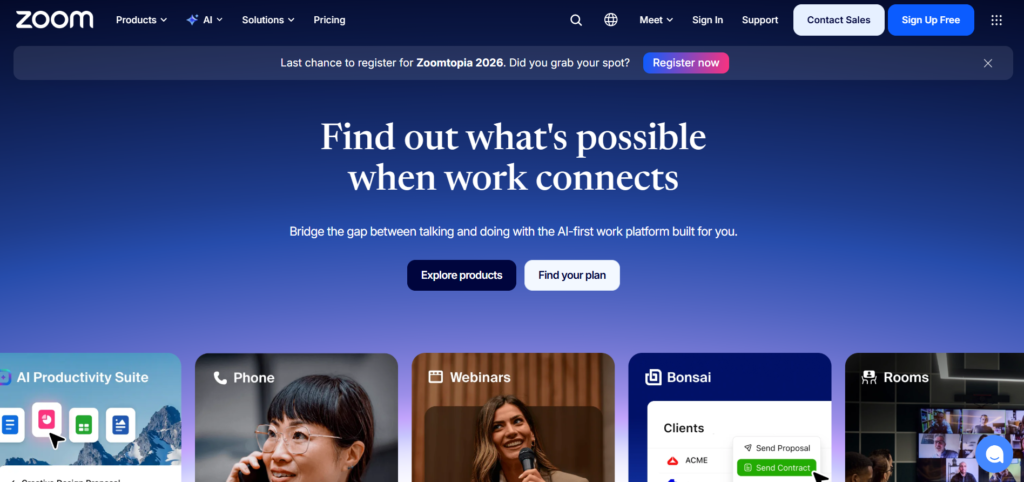
Zoom for Education is ideal for schools that need video instruction, small-group activities, and structured lessons. Presentations can be shared, breakout rooms can be used for collaborative activities, and students can be gathered for discussions. For this reason, they can be used in the regular classroom and school-wide online sessions
Student classrooms: For breakout rooms, let students work in smaller groups, and use screen sharing to help teachers explain concepts visually.
Pricing: Education pricing varies depending on the institution’s needs and pricing agreement. Features available: These vary depending on the institution’s education pricing and licensing agreement.
Challenges: Administrators should consider meeting controls, recording policy, LMS integration, and licensing fees before rolling out Zoom across the school.
2. BigBlueButton: most suitable for education-related virtual classrooms
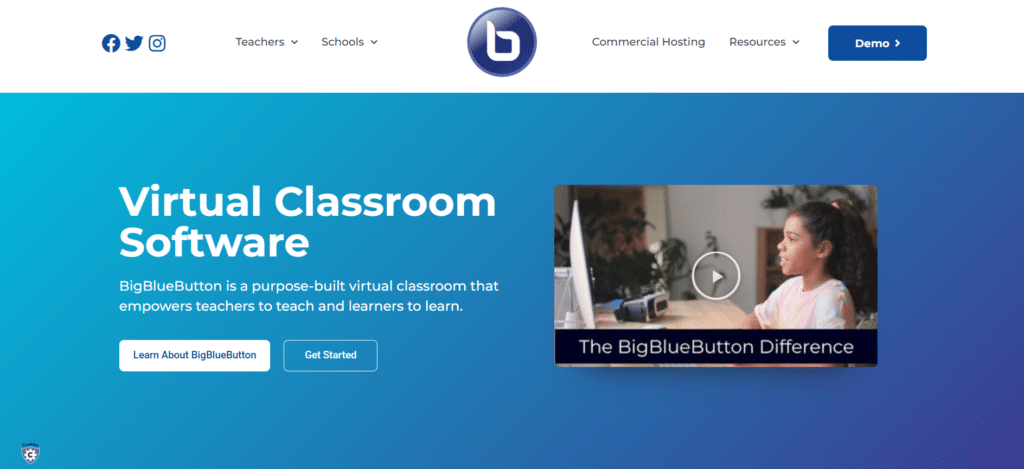
BigBlueButton is NOT meant for business meetings, but for online teaching. It offers presentations, shared whiteboards, polls, breakout rooms, and other classroom tools that let teachers present ideas and engage students in real-time lessons.
Student engagement: Teachers can engage students with presentations, polls, collaborative whiteboards, activities, and small-group discussions instead of lecture-only teaching.
Pricing: It is an open-source solution and can be self-hosted or hosted through a third-party service. The cost is based on hosting, support and technical needs.
Limitations: Self-hosting may require technical expertise, ongoing maintenance, and sufficient server space. These responsibilities should be evaluated before selecting it at school.
3. Microsoft Teams for Education: Best for Microsoft 365 Schools
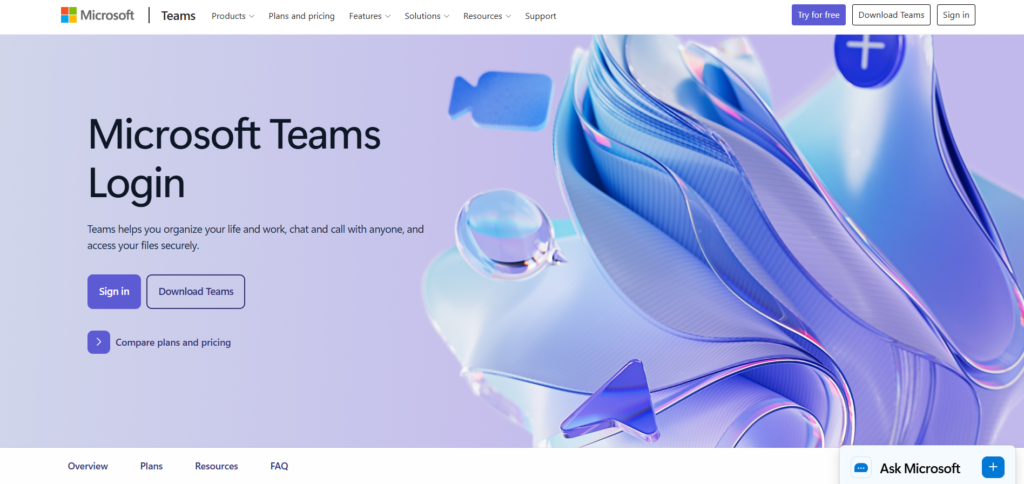
If a school already uses Microsoft 365, Microsoft Teams for Education is a great choice. It lets teachers connect classes, support collaborative tasks and assignments, and manage teaching activities without switching between applications.
Student engagement: Teachers can include students in discussions, provide resources, plan group discussions and assignments, and manage class communication.
Pricing and included features depend on the school’s Microsoft Education Licensing and subscription.
Restrictions: There may be restrictions on initial setup, permissions, and apply especially regarding IT support. Schools need to confirm which features will be included in their plans and how Teams will connect to their school’s systems.
4. Google Meet: ideal for schools with Google Workspace
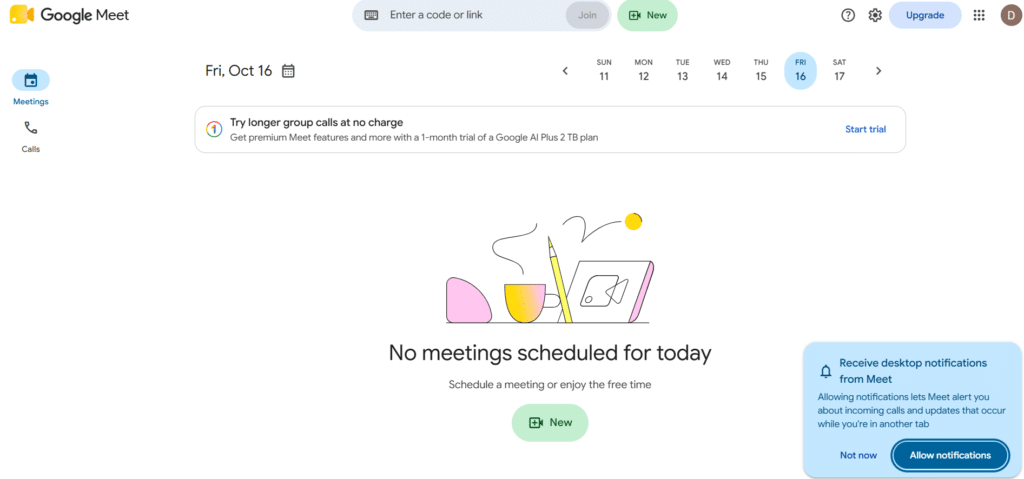
For schools already using Google Workspace and looking to implement simple-to-use video lessons, Google Meet is a good choice. Teachers can run live classes and share lesson content with students, while administrators can manage access and settings based on the school’s edition.
Student engagement: Live discussion, teacher explanations and shared materials keep students engaged during online lessons.
Availability and classroom features are different for each Google Workspace edition.
Restrictions: Check administrative control, recording availability, and whether teachers need specific education plans before rollout.
5. Cisco Webex: Best for Managed Online Collaboration

For institutions that require managed online meetings and collaboration, Cisco Webex may be a good option. Depending on the plan selected, it can include live instruction, presentation sharing, and interactive meeting activities.
Student engagement: Concepts can be explained through visual presentations and live discussion, which can encourage student questions.
Pricing: See below for pricing details based on the plan and required features and institutional arrangement.
Cautions: Schools need to ensure the package meets their teaching needs and assess the administrative burden, integrations, and overall cost before signing up.
Level 2: Interactive and Specialist Virtual Classroom Platforms.
Video calls are not enough for some schools. These platforms also offer built-in teaching workflows, active learning activities, reusable classroom spaces, and flexible meeting spaces.
Explore the best tools for student career guidance, which significantly assist students with their careers after K-12 and graduation.
To avoid wasting money, compare them to your school’s teaching requirements before buying another platform.
6. Class: Structured Teaching and Classroom Management
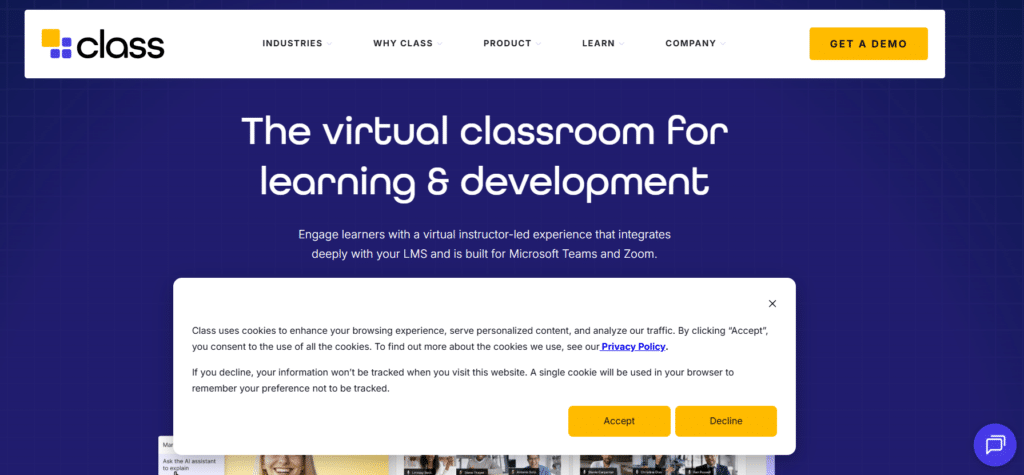
Ideal for: K–12 schools, higher education institutions that need to increase student engagement in live online classes while maintaining Zoom or Microsoft Teams integration.
Classroom enhancements include: Instructional whiteboards, improved breakout rooms, polls and surveys, collaborative documents, in-class notes, course rosters, gradebook tools, and engagement analytics. Depending on the configuration, it can also handle course templates and interactive recordings.
Student engagement: Teachers can view breakout room attendance, manage breakout-room groups, review polls to check student understanding, and review participation data. These tools help teachers go beyond the basics.
Pricing: Class has a presentation-based pricing model. Schools can request a demo from Class to talk about licensing and features.
Restrictions: Class does not replace Zoom or Microsoft Teams, but is designed to be used alongside them. Schools should check the required underlying platform, the licences available, and whether they currently have an integration with their LMS and whether it will be supported.
7. Engageli: tool for participation-focused learning online
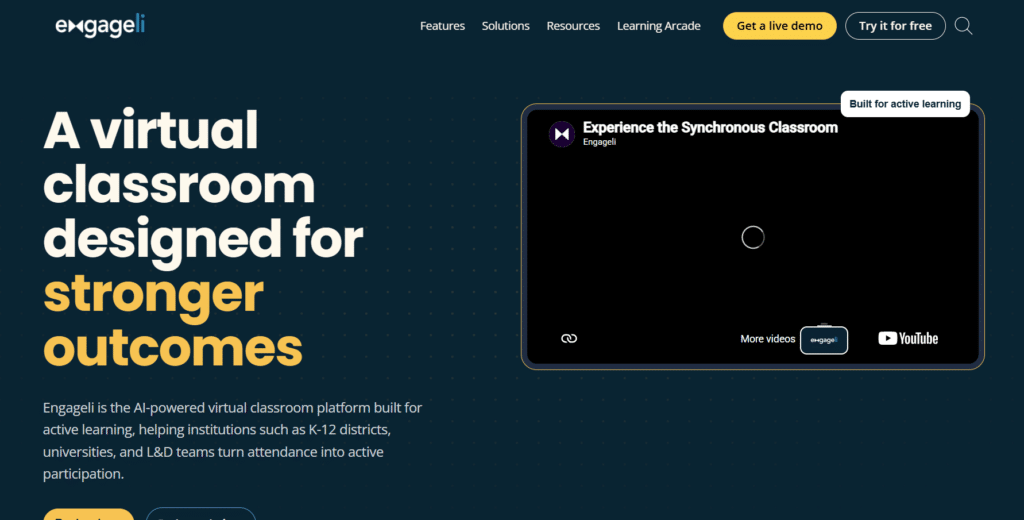
Ideal for: Schools, universities, and online learning programmes that want to encourage collaboration and engagement beyond video calls.
Key classroom features: Engageli provides virtual tables for small-group collaboration, polls, quizzes, whiteboards, shared documents, notes, and live engagement analytics. It also supports interactive playback of recorded classes, LMS integration, and AI-based learning capabilities.
Student engagement: Switch between whole-class discussion and small-group sessions, with whole-class participation and small-group comprehension. Interactive Polls and quizzes are opportunities to check for understanding throughout the lesson.
Pricing: Engageli also offers a free trial classroom. Paid institutional pricing is customised according to factors such as licences or usage hours.
Restrictions: It offers a broader active-learning environment, which can be harder for teachers to prepare for than a typical meeting tool.
It’s also important to review how engagement analytics are collected and used, especially for younger students in schools.
8. Adobe Connect: Ideal for Structured Training and Reusable Lessons
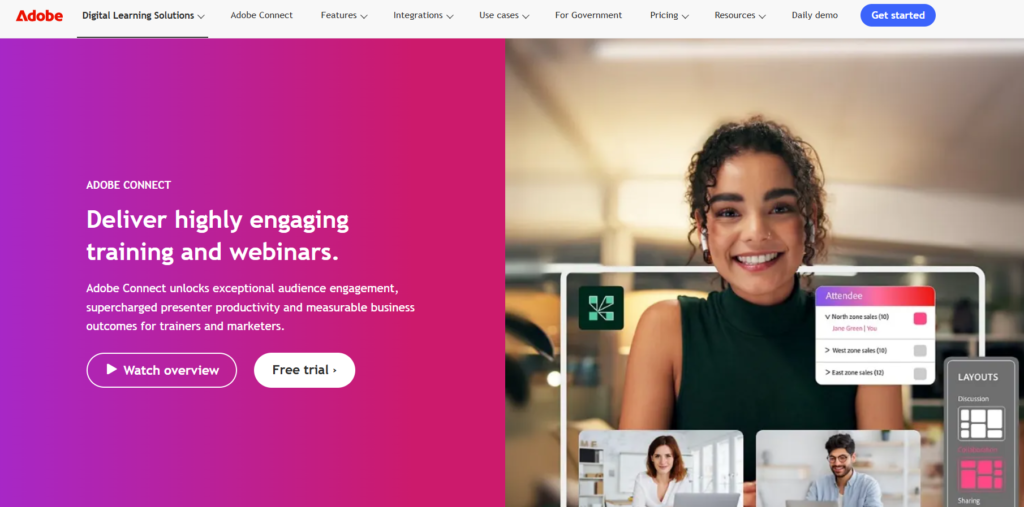
Ideal for: Institutions conducting planned online presentations, staff development, teacher training and courses.
Key classroom features: Adobe Connect offers screen sharing, chat, polls, moderated Q&A, whiteboards, annotations, recordings, and configurable virtual rooms. Persistent room layouts and reusable templates let teachers create learning activities and resources ahead of time. Plans also support accessibility features, including captioning and transcription.
Student engagement: Present, poll, pose questions, and have breakout activities. Recurring classes can reuse room layouts and quizzes, and engagement dashboards can support formative assessment when available.
Pricing: Adobe’s official pricing page offers Training plans starting at US290 for Premium and US$390 for Enterprise. Tiers vary in capacity and features, and you may need to pay extra for additional features. Check the package before purchasing. Learn more on [Adobe Connect pricing](https://www.adobe.com/products/adobeconnect/pricing.html).
Restrictions: The licensing framework can become costly if schools need more room, storage or add-ons for specific purposes. Administrators need to determine the cost per instructor and determine that the package they have chosen will accommodate the number of simultaneous sessions that are needed.
9. Jitsi Meet: best for open-source video meetings
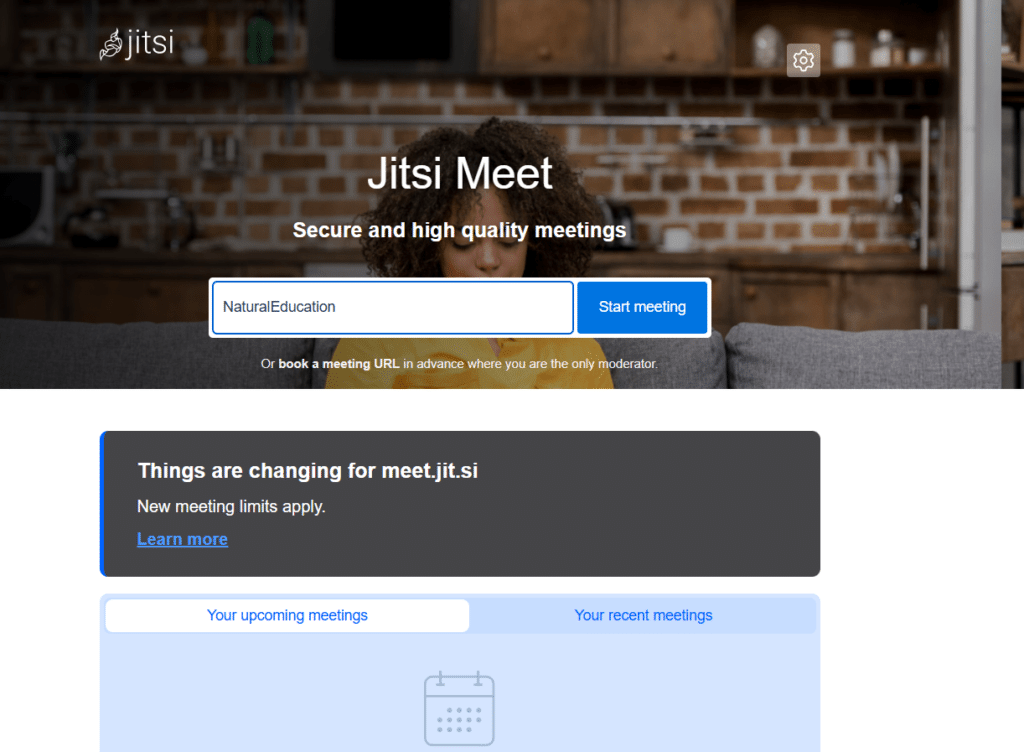
For schools that seek free video meetings, or prefer to set up and run their own conferencing system, this is the best choice.
Key classroom features include browser-based video meetings, screen sharing, chat, meeting links, and collaborative document editing via integrations. Schools can install their own instance or use the public service for more control over configuration.
Student engagement: Not all students need a traditional user account on the public service, as teachers can share presentations, explain concepts in real time, answer questions, and facilitate discussion.
Development: Jitsi Meet is a free and open-source software that is developed by a community of developers. The public service is free, but self-hosting may incur costs for servers, bandwidth, maintenance, and support. Check out the
Limitations: Jitsi is just a video conferencing solution, and not a full school LMS. Schools with their own deployment must handle server capacity, updates, access, security, and troubleshooting. A free public service may not provide the administration or support a school needs.
10. Whereby
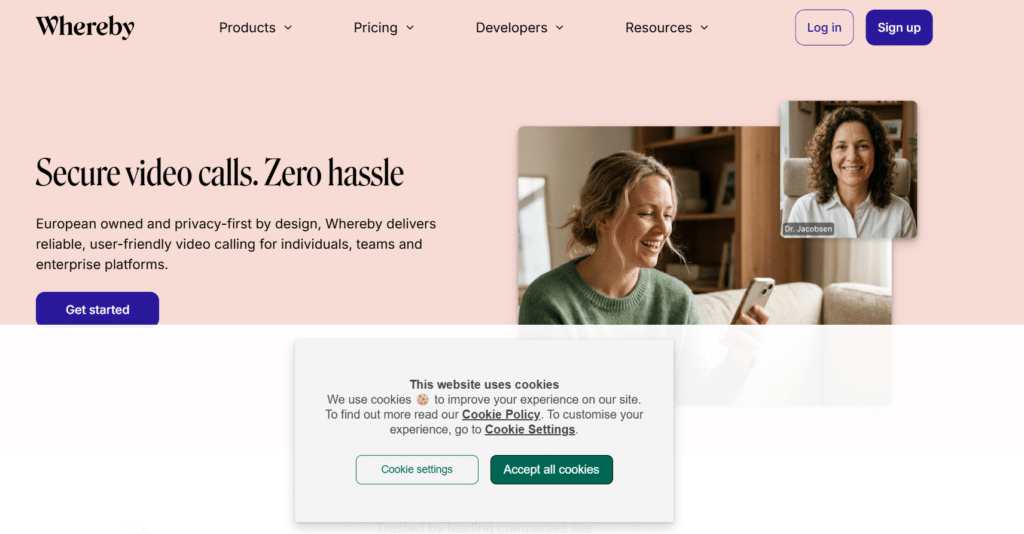
Ideal for: Tutors, small schools, and educators who want students to join video sessions through a browser with minimal installation and account hassle.
Key classroom features: Browser-based meetings, persistent room links, screen sharing, and collaboration features. Depending on the paid meeting plan, additional features include longer meeting capacity, longer meeting times, meeting recording, custom branding, and breakout groups.
Live discussion, screen sharing, and visual explanations help teachers deliver lessons and increase student engagement. For parent meetings, tutoring, or brief distance-learning sessions, simple joining links can be very convenient.
Pricing: The pricing for Meetings is Free at US10.99 per month, and Business at US$13.99 per host per month (with at least three hosts needed).
The Free plan allows up to 4 attendees and up to 30 minutes per meeting; the Pro and Business plans include per-meeting allowances of 100 and 200 attendees, respectively. Please refer to the latest pricing.
Limitations: The Free plan allows four people and 30 minutes per meeting, which may not be enough for many full-class lessons. Paid plans offer similar course management, grading, and school management capabilities, but they may not include all features; review the recording policies, privacy controls, and safeguarding requirements before using it with students.
Layer 3: Specialist Teaching and Student Safety Tools
11. LearnCube: An excellent choice for online language teaching and tutoring
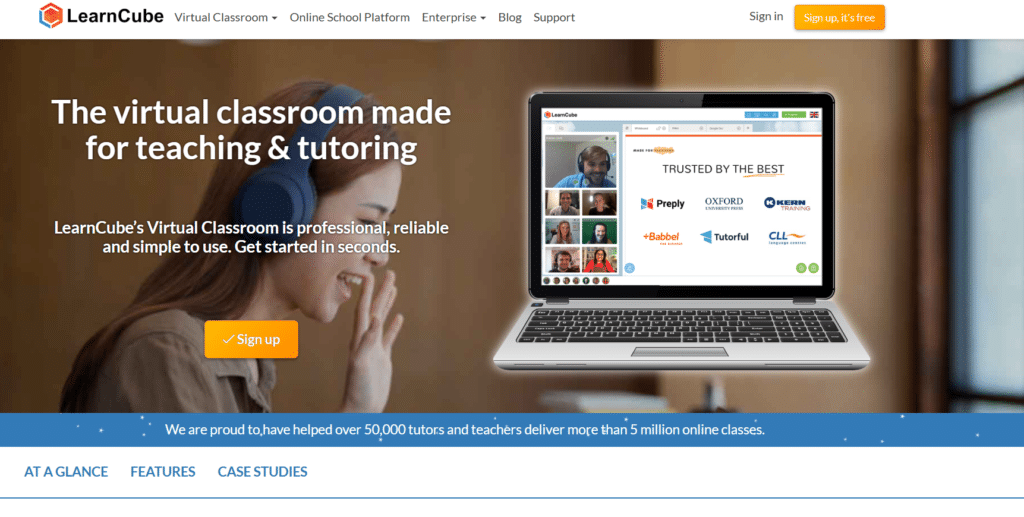
Ideal for: Language schools, tutoring services and teachers who need to provide subject-specific language instruction to one or more students.
Key features: LearnCube provides interactive whiteboards, a library of offers, file and screen sharing, and lesson library teaching tools. Depending on the plan, it also offers classrooms, breakout rooms, attendance reports, class records, and centralised teacher and student accounts.
Student engagement: Teachers can annotate lessons in real time, incorporate visual teaching tools, and lead students through interactive exercises. Conversation features also support language teachers’ speaking practice.
Pricing: LearnCube offers a free Basic plan, a Virtual Classroom Pro plan, and an Online School Premium plan starting at $19 and $99 per month, respectively. It may be necessary to pay setup fees for the school where you’re purchasing the system, and there may be optional extras to consider before buying.
Limitations: LearnCube is primarily geared towards tutoring and language courses. Schools with multiple subjects should explore whether their subject management and tools are aligned with their broader curriculum requirements. Also, ask for a quote for concurrent classes, recordings and administrator accounts for larger institutions.
12. GoGuardian: best student online safety and device management tool
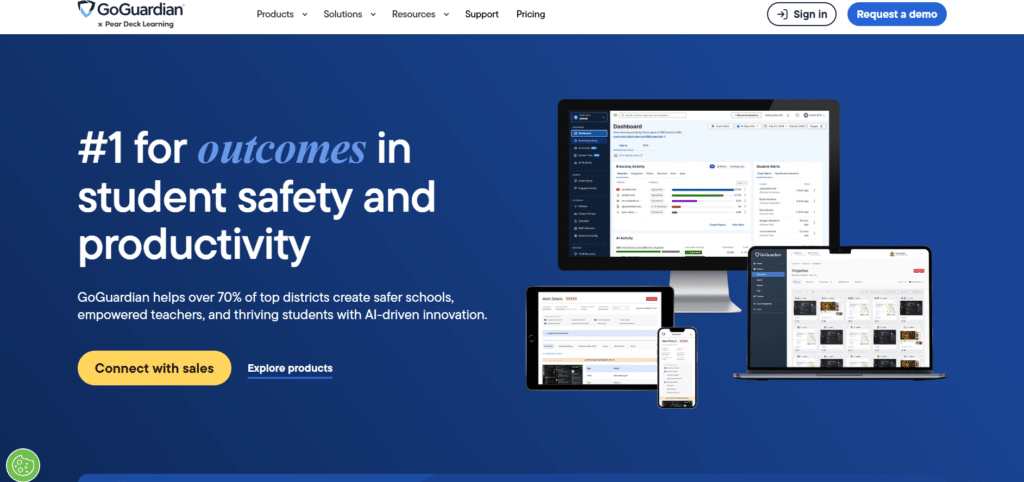
Ideal For: K–12 schools and districts that need visibility into student web content and resources to help manage school-issued devices for learning.
Key features: GoGuardian offers a range of products for web filtering, classroom management, and student safety. Schools can control access to web contDepending on the product chosen, monitor classroom browsing, provide individual guidance, and receive alerts about potential safety concerns, depending on the product chosen.
It can keep students on task and offer personalized support when they wander off-topic. It is not designed for live video lessons, but for classroom management and digital safety.
Pricing: GoGuardian is a custom institutional price. Quotes may be subject to enrolment, product bundles, contract period and professional services. Schools may contact the official pricing page on goguardian.com for pricing.
Limitations: GoGuardian is not a video-conferencing system or the school’s LMS. The effectiveness of its implementation also relies on which devices it supports, how they are configured, and which products are bought. Administrators should set guidelines beforehand for monitoring, access to student activity information, retention, and escalating safeguarding concerns.
Layer 4: includes the school LMS and Course Management.
13. Moodle: Best for Customisable Learning Management
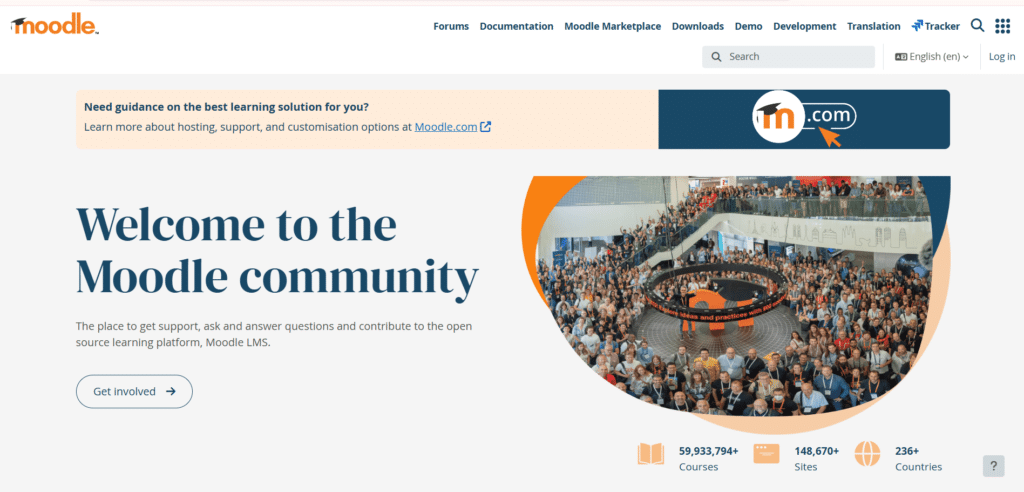
Ideal for: Schools that want control over their digital learning environment and want to customise course delivery, assessment, and student learning activities.
Moodle offers a range of features, including course pages, learning resources, assignments, quizzes, grading, forums, and progress tracking. It can be expanded with plugins to integrate compatible tools with the school’s to meet instructional needs.
Student engagement: Teachers can use quizzes, discussions, collaborative work, and assignments to create a learning experience that extends beyond live lessons. Assignments and materials are available to students and can be assigned from a central point.
Self-hosted Moodle LMS is free and open-source software. However, schools need to plan for hosting, implementation, maintenance, and support. MoodleCloud offers paid hosted versions, which will depend on the package you select. A limited free trial is also available. Refer to Moodle’s official hosting options
Pros and cons: Self-hosting gives schools more control but also increases their obligations for updates, backups, security configuration, performance, and ensuring plugins are compatible. However, high levels of customisation can also make maintenance tasks more difficult and maintenance upgrades more complex. If schools don’t have technical staff on hand, they can use managed hosting, installation, and maintenance.
14. Canvas LMS: best choice for centralized course delivery and assessment
Ideal for: Schools and educational institutions that need a structured approach to course and assignment management, grading, and learning progress across departments or campuses.
Canvas is a course organisation, assignment submission, grading, feedback, and reporting system. Institutions can also assess integrations and accessibility features to meet student needs and support their current teaching systems.
Student engagement: Teachers can mark up work, structure learning, explain what is expected in the course and utilise progress data to identify the students who may require extra help.
Pricing: Canvas has institutional pricing that is available for quotes. Today, Instructure offers three tiers of products: Canvas Core, Canvas Plus, and Canvas Next; schools should ask for a custom quote to learn what features, services, and support are covered with each tier. Please refer to the [official Canvas tiers and pricing information](https://www.instructure.com/products/canvas-tiers). <Cite refs={[“turn230924search1″,”turn230924search11”]}/>
Restrictions: Canvas can be a big implementation project when a school migrates courses, historical grades, user accounts and integrations from another LMS. Administrators should verify data migration responsibilities, staff training, support, and integration/service fees prior to entering into a contract.
Layer 5: before Virtual room for Teaching Practice
15. Vedamo: An excellent tool for interactive online teaching
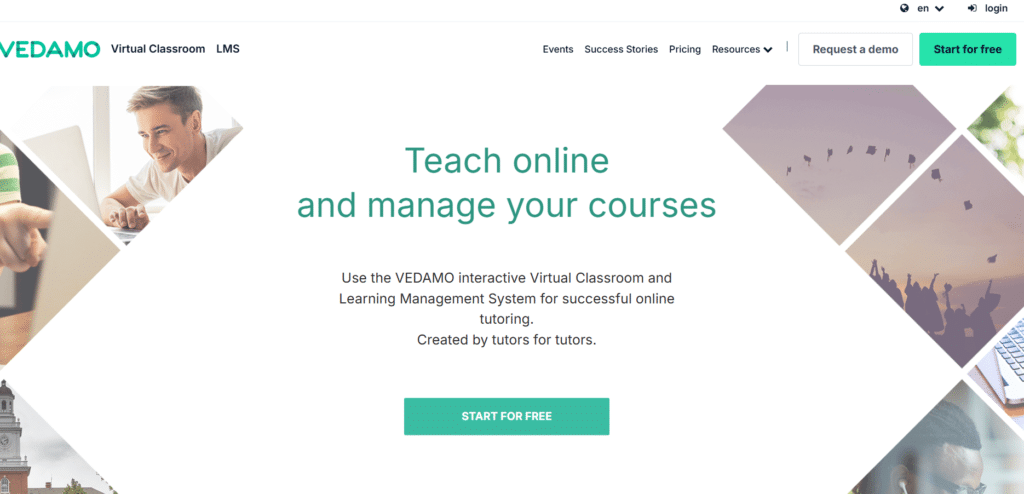
Best suited to: Tutors, online schools, and teaching organisations that need a dedicated virtual classroom and teaching features, and optionally course and learner management.
Vedamo’s virtual classroom features Include Breakout rooms, video and audio, screen sharing, and an interactive whiteboard. It includes an LMS feature that allows it to create courses, quizzes, learner accounts, schedules, and administer them. The virtual classroom schedules can be assessed individually or together.
Student engagement: Materials can be shared on the shared whiteboard; the teacher can annotate materials, explain concepts visually, and students can be broken into smaller groups for collaborative tasks. When used as part of a lesson plan, interactive session archives can also be used to help learners “return” to lesson content.
Pricing: Vedamo’s virtual classroom and LMS are available for free for 30 days. Paid costs are based on the configuration, such as simultaneous classroom licenses, user accounts and storage. If you need multiple classrooms or school-wide administration, contact us for current options or a quote.
Limforns: One virtual license allows only one classroom to be open at a time; therefore, schools must determine how many virtual classrooms they need open simultaneously to run the school’s virtual classrooms. Account and configuration considerations also apply when implementing the LMS plan. Institutions should test scheduling options, learner access, reporting, and integration with their current LMS before deciding whether to adopt Vedamo as their primary classroom system or as a specialist teaching tool.
How to Choose Online Classroom Platforms for Schools
When selecting online classroom platforms for schools, you can’t simply compare features. Administrators need to compare how each tool fits into existing systems, helps to keep students safe, and doesn’t cost the school more in the long run.
Analyze Integration, Privacy & Total Cost
Integration: Does the platform integrate with your existing learning management system (LMS), school identity provider, calendar, and student information system? Don’t require teachers to re-enter data into multiple applications.
Privacy and safeguarding: Understand the provider’s provisions, what data is stored, and whether it can be erased. Check legalities, and draft monitoring procedures.
Low-bandwidth access: See test lessons on mobile devices and low bandwidth. Seek out audio-only engagement, captioning, downloadable materials and recordings for students who can’t make it to live sessions.
Assessment integrity: Review which tests offer assessment controls, but ensure they’re proportionate, accessible, and appropriate, and not automatically assumed to be the most intrusive form of monitoring.
Cost: Cover all costs, including licensing, hosting, technical support, migration, teacher training, and ongoing administration.
Accessibility: Check keyboard accessibility, screen-reader accessibility, accurate captions, and accommodations.
For instance, if a school is already using Microsoft 365, it may be more likely to integrate it into its current system and add its own meeting and collaboration tools. Limited IT support needs to be compared with managed options, too, when it comes to software maintenance at a school.
Conclusion
Not all the best virtual classroom tools for teachers have to be the platforms with a plethora of features. These tools let teachers deliver engaging lessons, support students, and collaborate without adding unnecessary technical burden.
If you’re looking for an easy-to-use live teaching solution, Zoom for Education and Google Meet are good options. For schools that already use Microsoft 365, Teams for Education could work; for a better classroom fit, BigBlueButton might be a better choice. Engageli and Vedamo provide special learning environments for interactive learning. GoGuardian works best for online safety and management, while Moodle and Canvas LMS work best for course management, assignments, and student progress.
When choosing among the top virtual classroom software, pick what best fits your school’s needs, test shortlisted tools with teacher pilots, and confirm pricing, accessibility, privacy, and integration within your budget, including hosting, training, support, and maintenance.
Use tools already in place at your school, supplement missing features, and don’t pay for redundant features. A single platform that addresses multiple issues is often more useful than buying several platforms that address the same issues.